

To use AI to extract data from a PDF, you define the fields you need, let an AI model read the document and locate those values, then validate the results before sending them to Excel, a database, or a business system. Modern tools handle digital PDFs, scanned documents, and tables in any layout, so the same process works whether you receive ten invoices a week or ten thousand.
PDFs are built to look the same on every screen, not to share data. That is why so much business information stays locked inside them. Seagate's Rethink Data report found that 68% of data available to businesses goes unused, and data trapped in documents is part of that problem.
This guide explains how AI reads a PDF, walks through the extraction process step by step, shows how to keep accuracy high, and compares the main methods. It is written for analysts and operations teams who need reliable data out of documents without writing code. For extraction beyond PDFs, see our guide to AI data extraction.
How AI Extracts Data from PDFs
AI PDF data extraction works in layers. Each layer solves a different problem, and knowing which one is failing makes errors much easier to fix.
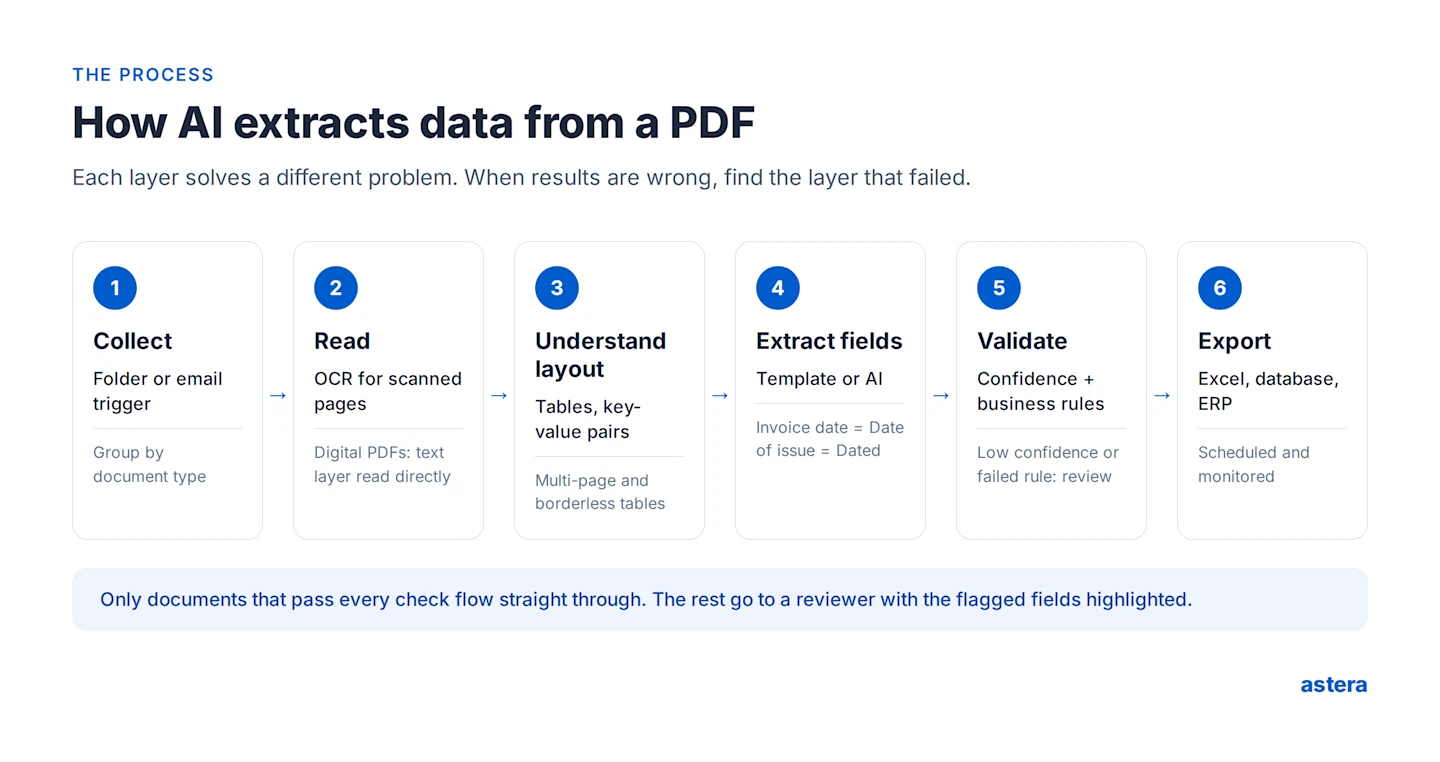
Layer 1: Reading the text (digital vs. scanned PDFs)
Not all PDFs are the same inside. A digital PDF, exported from software such as an ERP or Word, already contains a text layer. You can select and copy its text, so the tool reads the characters directly and there is nothing to misread.
A scanned PDF is just a picture of a page. Optical character recognition (OCR) has to turn the pixels into text first, and that is where most errors begin. The open-source Tesseract OCR engine's documentation is clear about what hurts accuracy:
Resolution: it "works best on images which have a DPI of at least 300 dpi." Phone photos and faxed pages often fall below this.
Skew: line detection "reduces significantly if a page is too skewed." Crooked scans produce jumbled text.
Noise and uneven backgrounds: stamps, shadows, and speckles can cause "accuracy rates to drop."
Quick test: if you can't highlight the text in your PDF viewer, it's scanned and needs OCR.
Layer 2: Understanding the layout
Text alone isn't data. The tool also needs to know which words belong together. Layout analysis finds headers, paragraphs, key-value pairs ("Invoice No: 10442"), and tables.
Tables are the hardest part, because a PDF stores them as characters placed at positions on a page, not as rows and columns. Watch for:
Borderless tables, where columns are implied only by spacing
Tables that span several pages, sometimes repeating the header row
Merged cells and wrapped text, where one line item runs over two lines
Multi-column pages, where reading order is not simply left to right
Layer 3: Understanding meaning
This is where AI makes the biggest difference. Older, rule-based tools find a value by its position or a fixed label. Language models understand that "Invoice Date," "Date of Issue," and "Dated" mean the same thing. They also know that the total is not the same as the subtotal, even when a vendor changes its layout.
Templates vs. AI: choosing the right approach
The two main extraction approaches suit different documents. Microsoft's Document Intelligence documentation makes the same distinction: template models rely "on a consistent visual template," while AI (neural) models "support documents that have the same information, but different page structures."
Template-based extraction | AI / LLM extraction | |
Best for | The same layout every time: your own forms, one vendor's statements | Varying layouts: invoices from hundreds of vendors, contracts, emails |
How it works | Fields are mapped to positions or labels on the page | You describe the fields; the model finds them in any layout |
Precision | Very high once set up | High, but needs validation for critical fields |
Setup | One template per layout | Minimal; no template needed |
Main risk | Breaks when the layout changes | Can misread or, rarely, invent a value |
Most teams use both: templates for high-volume, fixed documents, and AI for everything else.
How to Extract Data from PDF Using AI: 6 Steps
The process below works for invoices, purchase orders, claims, statements, and contracts. Each step ends with how Astera ReportMiner handles it.
1. Collect and sort your documents
Start by gathering PDFs in one place and grouping them by type. An invoice, a purchase order, and a bank statement need different fields, so mixing them in one batch makes both setup and checking harder. Note which documents are digital and which are scanned, and set aside a sample of 10 to 20 real files, including the messiest ones, for testing.
In Astera ReportMiner:
Jobs can start automatically when a file lands in a folder or an email arrives, so documents are collected without anyone downloading attachments.
2. Get the text layer right
For scanned files, run OCR before extraction. Scan at 300 DPI or higher, straighten crooked pages, and avoid photos taken at an angle. When you control the source, ask vendors or internal teams to send digital PDFs instead of scans: it is the easiest accuracy gain available.
In Astera ReportMiner:
Choose the OCR engine that fits your documents, including Google OCR, Amazon Textract, PaddleOCR, and Tesseract.
3. Define exactly what to extract
Write down every field before you extract anything. For each one, decide its name, its type (text, date, number, currency), and whether it's required. Treat line items as a table that belongs to its parent document: one invoice, many rows.
Field | Type | Required | Example |
Vendor name | Text | Yes | Northwind Supplies |
Invoice number | Text | Yes | INV-10442 |
Invoice date | Date (YYYY-MM-DD) | Yes | 2026-09-14 |
Line items: description, quantity, unit price, amount | Table | Yes | 3 rows |
Tax | Currency | No | 84.00 |
Total | Currency | Yes | 1,134.00 |
A clear field list makes AI extraction more accurate and makes errors obvious. It also becomes the checklist for step 5.
In Astera ReportMiner:
Auto-Generate Layout uses AI to detect a document's structure and build a reusable template in about 5 seconds. For documents with unpredictable layouts, template-less extraction takes natural-language instructions instead. You can also click values directly on the page to define fields, and set up parent-child structures for line items.
4. Extract and clean the values
Run extraction on your test sample first, then clean as you extract: trim stray characters and spaces, convert dates to one format, strip currency symbols from numbers, and calculate derived values such as the amount due in your reporting currency.
In Astera ReportMiner:
A live preview updates as you define fields, and more than 200 built-in functions handle conversions and calculations at extraction time.
5. Validate before anything moves downstream
Never send extracted data straight into a finance system. Check it against your field list and business rules first (the next section covers this in detail).
In Astera ReportMiner:
Custom validation rules enforce accuracy and consistency, automatic field verification catches missing characters and overlapping fields, and each job reports error counts, null counts, and warnings.
6. Export and automate
Send validated data where it's used: an Excel workbook, a database, a data warehouse, or an ERP. See our guide to extracting data from PDF to Excel for spreadsheet workflows. Once the process works on your sample, schedule it so new documents are handled automatically.
In Astera ReportMiner:
Write to SQL Server, Snowflake, PostgreSQL, Oracle, MySQL, Redshift, and more than 300 other destinations, or export Excel, CSV, JSON, or XML. Scheduled jobs run on their own, and a central dashboard sends alert emails when something fails.
Once the data is out of the PDF, analysts can combine it with other sources in Astera Dataprep, for example matching extracted invoices to purchase orders and vendor records.
Automate Data Extraction With Astera's AI-Powered Platform
Don't fall for partially automated data extraction solutions. Opt for Astera's AI-powered data extraction and integration platform and automate your workflows from end to end. Try free for 14 days.

How to Make AI PDF Extraction Accurate
Accuracy doesn't come from the model alone. It comes from knowing where errors happen, catching them automatically, and sending only the uncertain cases to a person.
Common errors and how to fix them
What you see | Likely cause | Fix |
Garbled characters, "0" read as "O" | Low-resolution or skewed scan | Rescan at 300 DPI or higher, straighten pages, or request digital PDFs |
Line items shifted into the wrong columns | Borderless or multi-page table | Define the table explicitly; check the header repeats across pages |
Subtotal extracted as the total | Similar labels close together | Name the field precisely and add a sum check (below) |
Dates like 03/04 read the wrong way round | Mixed US and European formats | Set the expected format per vendor or country |
A value that isn't on the page | AI filled a gap with a plausible guess | Allow "not found" as an answer and make key fields required |
Use confidence scores to decide what needs review
Most AI extraction engines return a confidence score with each value. Microsoft's Document Intelligence documentation explains it plainly: a confidence of 0.95 means the prediction "is likely correct 19 out of 20 times." It recommends using confidence "to determine whether to automatically accept the prediction or flag it for human review" when accuracy is critical.
AWS takes the same approach with Amazon Textract, routing a field to a human reviewer when it was "detected with low confidence."
Astera goes a step further with two scores for every extraction. The accuracy score works like Textract's confidence score and shows how reliably each value was read. The validation score is based on the number of fields that fail your validation rules out of the total, so it shows whether the data is actually usable, not just correctly read.
The practical rule for business teams:
High-stakes fields (amounts, account numbers, dates that trigger payment): set a strict threshold and review anything below it.
Low-stakes fields (descriptions, notes): accept a lower threshold.
Track the review rate. If reviewers change very few values, you can loosen the threshold. If they change many, fix the source documents or the field definitions.
Check the numbers against business rules
Confidence tells you whether a value was read correctly. Business rules tell you whether it makes sense. Add checks such as:
Line-item amounts add up to the subtotal, and subtotal plus tax equals the total.
Quantity multiplied by unit price equals the line amount.
The invoice number hasn't been processed before (a duplicate-payment check).
The vendor exists in your vendor master, and the PO number matches an open purchase order.
Dates fall in a realistic range: no invoices dated 1926 or next year.
A document that fails a rule goes to review, even if every field had high confidence.
Guard against AI "hallucination"
Language models are good at filling gaps, which is a risk in extraction. If a PO number is missing from a PDF, a model may still return one that looks right. Anthropic's guidance on reducing hallucinations recommends explicitly allowing the model to say it doesn't have enough information, and grounding answers in direct quotes from the document. For extraction, that means:
Tell the tool that "not found" or a blank is an acceptable answer.
Where possible, keep the source text or page location for each value, so reviewers can check it in seconds.
Validate AI-extracted fields with the same rules as everything else. Never trust them because they look well-formed.
Measure accuracy on your own documents
Vendor accuracy claims are measured on someone else's documents. Before you roll out, extract your test sample and compare every field with the correct value. Track two numbers: field accuracy (the share of fields extracted correctly) and straight-through rate (the share of documents that pass every check with no human touch). The second one is what saves time.
PDF Data Extraction Methods Compared
The right method depends on how many documents you handle, how much their layouts vary, and what happens if a value is wrong. For more options, see four simple ways to extract data from PDFs, PDF parsing, and PDF scraping.
Method | Good for | Limits |
Manual copy and paste | A handful of documents | Slow, error-prone, doesn't scale |
PDF-to-Excel converters | Clean digital PDFs with simple tables | Struggle with scans and complex layouts; no validation |
General AI chat assistants | One-off questions about a single document | No batch processing, audit trail, validation rules, or scheduling; take care with sensitive data |
Template-based extraction tools | High volumes of fixed-layout documents | Need a template per layout |
AI document processing platforms (such as Astera ReportMiner) | Large, mixed volumes that feed business systems | Require initial setup and testing |
Use Cases: What Real Teams Extracted, and What Changed
Here is what four Astera customers extracted from their PDFs, how they set it up, and what each one teaches about planning your own project.
Organization | Documents | Before | After |
US government healthcare department | Wholesaler invoices, 1,000 to 5,000 lines each | 30 minutes to 2 hours per invoice | Under a minute |
Ciena Corporation | Purchase orders from 1,500+ customers | About 1 hour per PO | About 2 minutes (15x faster) |
Global elevator and escalator manufacturer | 40,000+ contracts, up to 250 pages each | Hours to days per contract | All 40,000 processed in about 100 hours |
Aclaimant | Insurance claim forms | Manual transcription | 50% less time and resources |
Invoices: a government healthcare department
The situation: The department runs the largest integrated healthcare network in the US, serving 9 million veterans. Its pharmacoeconomists analyze invoices from medication wholesalers to track usage, spot cost trends, and detect fraud. The PDF invoices ran from 1,000 to 5,000 lines each, and the team handled more than 1,000 transactions a day.
The problem: Its existing ETL tool, SQL Server Integration Services, couldn't read PDFs. Staff keyed in each invoice by hand, which took "anywhere between 30 minutes to a couple of hours."
What they built: Invoices are copied to a server folder. ReportMiner extracts the line items and loads them into a SQL Server database that feeds reports on medication usage, cost, and inventory.
The result: Processing time for each invoice fell to under a minute. Read the full case study.
The lesson: Line-item tables are where the value is, and where manual entry fails. Treat each invoice as a parent record with a child table of lines (step 3), and validate that the lines add up (see the accuracy section).
Purchase orders: Ciena Corporation
The situation: Ciena, a networking systems company, receives purchase orders by email from more than 1,500 customers, each with its own layout. Staff pulled out the customer name, parts, prices, currency, totals, and addresses by hand.
The problem: Each PO took from 30 minutes to several hours, including cross-checking against the customer database. Data entry errors caused slow back-and-forth with customers.
What they built: ReportMiner collects PDFs straight from email and applies a reusable template for each recurring customer. A pattern-matching feature finds values inside long POs, and the output goes as XML to Ciena's PO system for validation.
The result: Digitizing a PO dropped from about an hour to about 2 minutes, whatever its length, which made extraction 15 times faster. Read the full case study.
The lesson: Varied layouts don't rule out templates. For a stable set of repeat customers, a template per sender is precise and fast. AI extraction is the better fit for the long tail of one-off senders.
Contracts: a global elevator and escalator manufacturer
The situation: The company, which operates in more than 60 countries, needed coverage and exclusion terms from over 40,000 PDF contracts, some up to 250 pages long, to decide whether claims were eligible.
The problem: Paralegals read every contract by hand. One contract took from several hours to several days, and the backlog added up to what the team described as "thousands of days" of work.
What they built: Three extraction models search each contract for predefined keywords and phrases covering coverage and exclusions. A workflow runs them across contract batches, and the results load into the ERP.
The result: All 40,000+ contracts were processed in about 100 hours, and a new contract now takes a few minutes. Read the full case study.
The lesson: You rarely need everything in a long document. Decide on the few clauses that drive a business decision (here, claim eligibility), extract only those, and route anything unclear to a legal reviewer.
Insurance claims: Aclaimant
The situation: Aclaimant provides incident and claims management software for employers and insurance carriers. Its team turned PDF claim forms into standardized reports.
The problem: The work was entirely manual. "Before Astera, we were not using any product," said Operations Manager Susan Park. "We were manually transcribing the claim forms, just manual data entry."
What they built: The team created reusable extraction templates for incoming claim forms and defined patterns for each field. The output goes to Excel and CSV files that load into Aclaimant's own system and data warehouse.
The result: "The production time of at least 50% was saved," according to Park. Read the full case study.
The lesson: Standard forms are the quickest win. When the same form arrives again and again, one reusable template can take over most of the manual work.
Extract Data from PDFs in Seconds with Astera
PDFs aren't going away. Invoices, purchase orders, claims, and contracts will keep arriving as documents, and the teams that turn them into clean, validated data fastest will make better decisions with less manual work.
AI makes that practical at scale. It reads scanned pages, handles layouts that change from sender to sender, and understands what each value means. Paired with validation rules and review of low-confidence fields, it delivers data you can load straight into your systems.
Astera's intelligent document processing (IDP) solution brings those pieces together in one no-code platform. It offers:
90% faster data extraction than conventional solutions on the market,
97% reduction in errors while extracting data from PDFs,
90% faster data preparation for quick analysis and decision-making,
8 times faster document processing for maximum efficiency.
The fastest way to see what this means for your documents is to test it on them. Pick one document type, such as your vendor invoices, and measure the before and after.
See it on your own PDFs. Talk to an expert or start your free trial.
Try LLM Data Extraction for Yourself
Achieve accurate, context-aware data extraction with large language models. Try Astera’s AI-driven solutions and see the results firsthand.